
Cheats Apex Legends qui ne fonctionnent plus : contrôles après un patch
A troubleshooting checklist for Apex Legends cheats that stop loading or show nothing, from game updates to settings mistakes and security software.
When a cheat stops working, the cause is usually one of a few common things. Go through them in this order before assuming something is badly broken.
1. A game or season update just came out
This is the most common cause. After an Apex patch, software that worked yesterday may no longer match the new game version. Check the current status of the product and wait for an update if needed. Launching it anyway is not worth the risk.
2. You are running an outdated version
Make sure you have the latest version of the software. An old copy can fail even when the game change looks small.
3. Anti-cheat has changed
Easy Anti-Cheat updates can affect software that was fine before. If the status shows a problem, wait for the update rather than testing it in a live match.
4. Security software is interfering
Antivirus and similar tools sometimes block or quarantine files from software like this. Check whether anything was removed or blocked, and follow the setup instructions that came with your purchase.
5. Setup steps were skipped
Go back to the instructions and confirm you completed each step in order. Many problems come from one missed step, such as starting things in the wrong sequence or running the wrong game client.
6. A setting is working against you
If a feature seems to do nothing, check its settings first:
Aimbot not aiming. Confirm an activation key is assigned and the FOV is not too small. If the visibility check is on, it will ignore anyone you cannot see. See the aimbot settings guide.
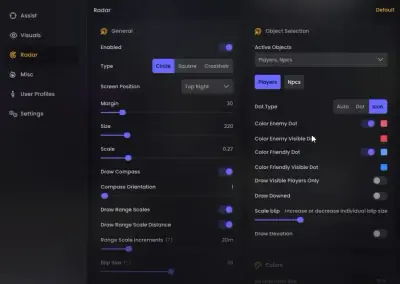
ESP not showing. Make sure it is switched on, the colors stand out against the background, and the distance is not set too short. The ESP setup guide covers each option.
7. Your system does not meet the requirements
Check the compatibility notes on the product page and confirm your Windows version and game client (Steam or EA App) match.
8. Contact support
If none of that helps, collect the details: what you did, what you saw, and any error message. Then contact support through the channels on the Apex Legends cheats page. Clear details get you a faster answer.
A note on risk
Do not keep using a tool that is behaving oddly in a live match. If you are unsure about its status, wait. Our guide to detection and updates explains why.